

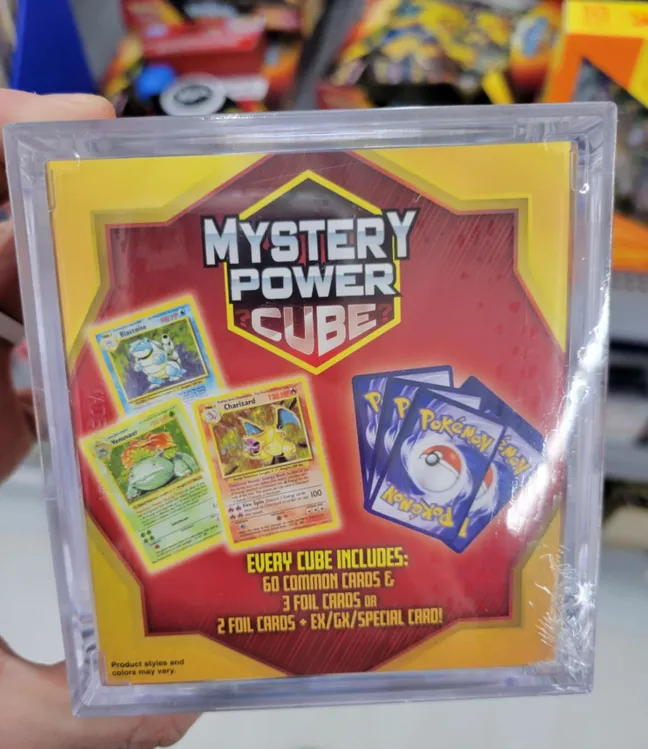
To date, the sorting parameters available to users of our PhyzBatch-9000 automatic card sorter have been limited to a single criteria for each of the machine’s 13 bins (i.e. Common cards go to Bin 1, Uncommon cards go to Bin 2, etc.). While still incredibly useful, this ‘simple’ sorting methodology has not allowed for the creation of “Lots”, which is a popular way for trading cards to be repackaged and sold. Take, for example, this Mystery Power Cube pulled from the shelf of a local Walmart. It’s guaranteed to include 60 commons and 3 foil cards, or 2 foil cards plus an EX/GX/Special card! Gee, that sounds an awful lot like programming logic. AND NOW IT IS! Using our new “Advanced Sort Mode / Lot Creation Tool” (it’s a working title), you can stack up unlimited numbers of conditional statements on a per-Bin basis. Here’s a brief overview of the new functionality:
Before diving in, it is very important to establish a fundamental principal of sorting with the PhyzBatch-9000, and that is numerical Bin order precedence. This simply means that Bin 1 is the highest priority Bin, followed by Bin 2, through to Bin 13 which has the lowest priority. For example, if you allocate Rare cards to Bin 1, and Blue cards to Bin 2, a Rare Blue card would go to Bin 1.
With the Advanced Bin Options feature enabled, an orange “Advanced Options” button will appear on each of the Bin icons on the Sorting page of the user interface.

Upon clicking one of the Advanced Options buttons, a new modal window will open as shown below. Within the modal window, you will be presented with several options – DO NOT BE OVERWHELMED! Once you become familiar with this window, it is very straightforward.
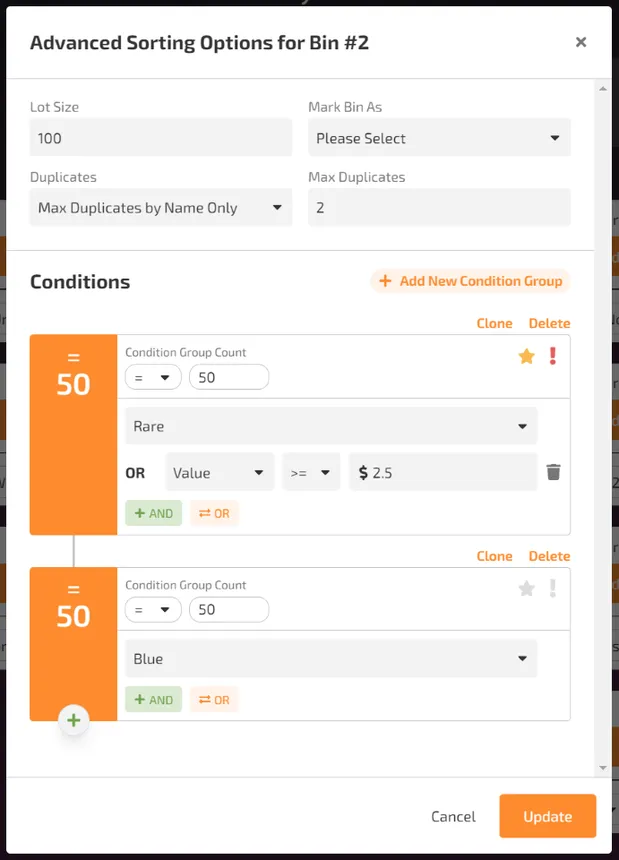
Below is a quick overview of the options
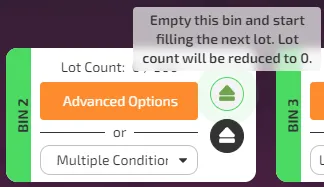
1. Lot Size – this (optional) condition allows you to limit the number of cards assigned to a “Lot”. You may choose any Lot Size, even one that exceeds the 500-card capacity of a Bin! When a Lot Size has been specified, that Bin is now a “Lot”. Lots follow special rules:

) which appears directly above the Empty Bin button (

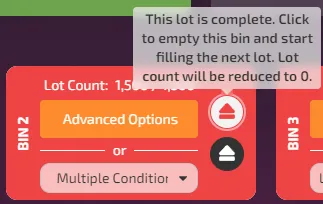
) on the Sorting page. Lots are not cleared/reset/restarted until you press this button! Also, you may choose to press this button prior to a Lot becoming full (for whatever reason), and it will clear/reset/restart that Lot. Here is how a Lot will look as it fills up:

2. Mark Bin As – here you will find all of the “dynamic” Bin options (the “Card Name”, and “Set” sorts), as well as options for Face-up cards, Duplicates, Overflow, and Unidentified.
3. Duplicates – this option allows you to choose whether or not you would like to exclude duplicate copies from a Bin or Lot. You may leave this as “Unlimited”, or you may select either “Max Exact Duplicates” or “Max Duplicates by Name Only”. As the titles imply, “Name Only” cares only about card name copies (so reprints from different sets will be treated as duplicates), while “Exact Duplicates” cares about EXACT copies (printing variations and reprints from different sets are treated as distinct cards). If you select one of these two Duplicates options, you must then specify the maximum number of duplicates allowed for that Bin.
4. Trump (

) – this option lets you set a Bin or Lot to trump status, meaning it will have the highest priority, regardless of the numerical order of the Bins. If you mark multiple Bins with trump status, the numerical order of the Bins will once again take precedence.
5. False (

) – as you may imagine, this option inverts whatever your conditions are. This can be very useful if, for instance, you want to have Lots composed of Common and Uncommon cards. Instead of making two conditions (one for Commons and one for Uncommons), you can simply make one “Is Not” Rare condition.
6. Condition Group Count – this lets you assign specific count requirements to condition groups. So, if you want to have 50 Uncommons in a Lot, you select a count of 50 for that group.
7. Conditions – here you will a find a list of every possible card parameter. You can link multiple conditions together using AND/OR logic, so if you want Rare Blue cards to go to a Bin, you can select “Rare” AND “Blue” from the conditions. You may also create groups of conditions, so If you want to have 50 Rare cards and 50 Blue cards end up in a Bin, then you need to make two separate groups of conditions: (1) 50 Rare cards; and (2) 50 Blue cards.
Confused? That’s understandable. This new sorting methodology is a Lot to process. It all makes sense though, and as you experiment with it, you will quickly find that it is a reasonably intuitive system.
If you do not feel as though you have any need of advanced sorting / lot creation, you can happily leave this setting turned off. Just because we spent hundreds of hours developing these new features doesn’t mean we’ll be sad if you decide not to try them out. The emotional stability of our development team is rock solid; I’m 70% certain of this.
The literal and graphical information presented on this site about Magic: The Gathering, including card images, the mana symbols, and Oracle text, is copyright Wizards of the Coast, LLC, a subsidiary of Hasbro, Inc. TCG Machines is not produced by, endorsed by, supported by, or affiliated with Wizards of the Coast.


