

One of the most hotly requested features our customers have asked for has been the implementation of “buy lists”, “pick lists”, “stock lists”, “deck lists”… you get the picture. There are infinite use cases in which a sorting session with a PhyzBatch-9000 may be enhanced and improved through the use of a custom curated card list. But hey, I’m not here to tell you how to sort your cards, instead I’ll just introduce you to our newest software feature: Lists!
Next time you log into the User Interface, you will see a new “Lists” option in the top banner menu.

Clicking into this new tab will bring you to the Lists page, where you will see options for importing existing lists, and for creating new lists.

So which option should you choose?
Well, if you’re a spreadsheet-savvy individual and you already have loads of lists on other platforms, or perhaps you maintain your own in-house inventory, then the “Import” option is for you! Simply drag and drop an existing CSV list in the proper format, and bam – your list is now accessible from within TCG Machines’ online inventory system. To make sure your list is formatted correctly, please check out the example lists provided for both Magic and Pokémon cards. You will find links to these resources directly from the Import List modal:
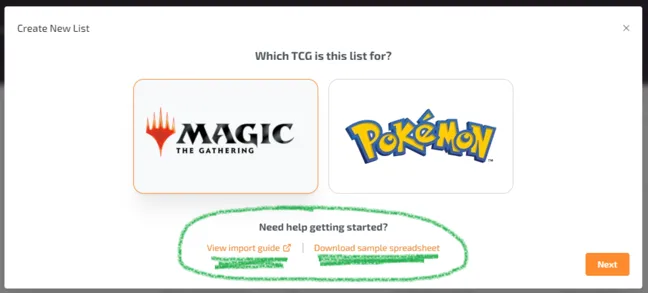
If you don’t have pre-built lists available, then you’ll want to make a new one from scratch using the “Create List” option. You will be prompted to choose the trading card game (TCG) from which your new list will be composed, and then you may search the full database of cards to select the ones you’d like to add to your new list.
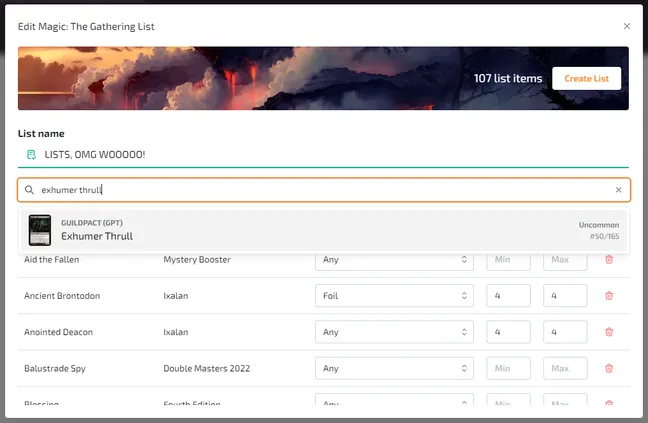
Once you have a list with some cards in it, you will notice options for each of the cards, namely: “Foil Type”, “Min Qty”, and “Max Qty”. As you might guess, the Foil Type option allows you to specify whether you would like a foil or normal version of each card (or if you don’t care, you can pick “Any”). If you are planning on using your list as the criteria for a Lot (please see our previous blog article: Advanced Sort Mode), then the Min Qty and Max Qty options let you constrain the number of copies for each card to your desired output. Lastly, you will notice a red trash can icon which lets you remove cards from your list. Once your list has been edited to your liking, you are ready to load your newly created list into a sorting session!
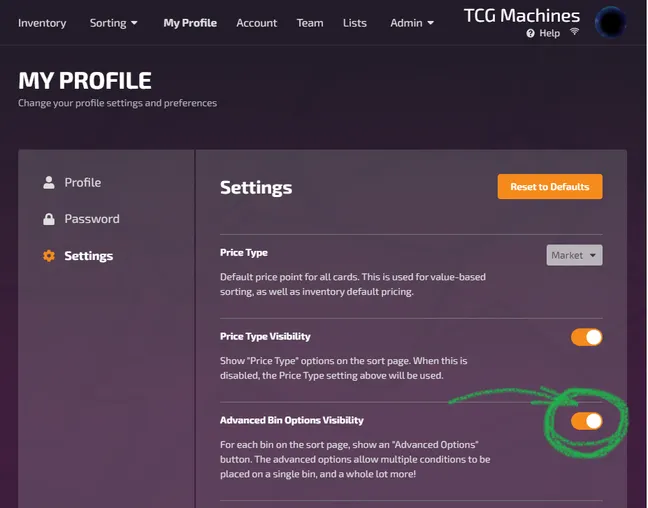
Firstly, make sure you have Advanced Bin Options (AKA “Advanced Sort Mode”) toggled on from your My Profile / Settings page.
Next, navigate over to the Sort page as you normally would to start a new sorting session. Select the orange “Advanced Options” button on one of the Bins, and you will see a new “Card List” option.
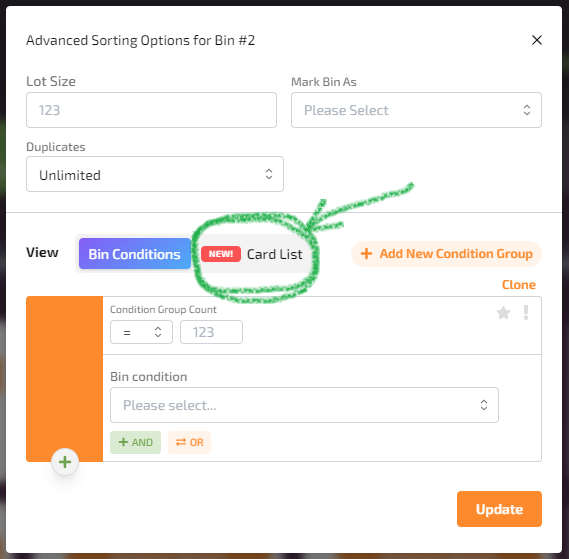
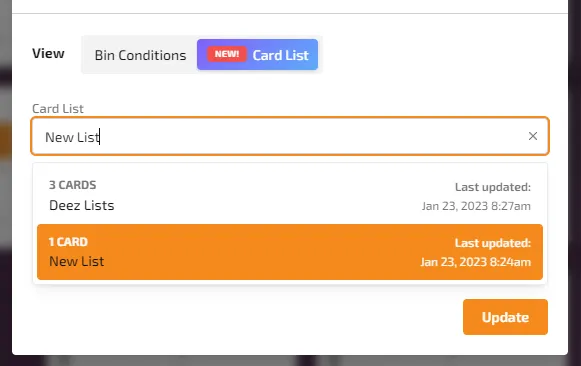
Toggle the Card List option on, and you will be able to search for and select any of the lists you have created or uploaded. As you sort, if cards match the criteria on the selected list, they will be sent to this Bin.
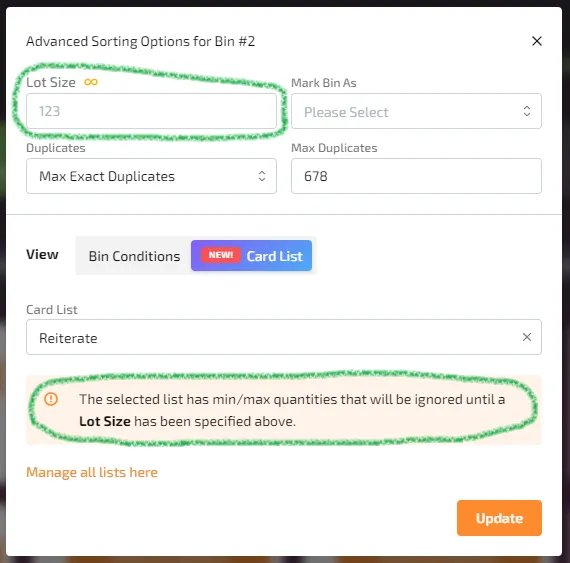
That pretty well sums up how the new Lists feature works, but I’ll throw in a quick “gotcha” about Min/Max Qty and Lot Size. If you have any minimum and/or maximum quantities set for a list, you MUST specify a size (“Lot Size”), otherwise any Min/Max Qty settings you have entered will be ignored. If you don’t have a size limit, the minimum and maximum settings have no effect, as the criteria is open-ended and the list will never be complete. When you do specify a Lot Size, let’s say 100 cards, then your minimums and maximums will be effective, and you will be notified when your list of cards has been completely filled. If you just want cards that appear on your list to go to a Bin, and you don’t care about minimums and maximums, then you can happily ignore this “gotcha”.
For further detail on all things lists, please check out our Knowledge Base article on the subject: https://support.tcgmachines.com/knowledge/how-to-use-lists.
Goodness, I’ve said “lists” way too many times in this article, and now the word has lost all meaning for me. Amazingly enough, there’s a label for this phenomenon: semantic satiation.
Ah, and another fun new feature which you may or may not have noticed: you can now enable “dark mode” from the login screen:
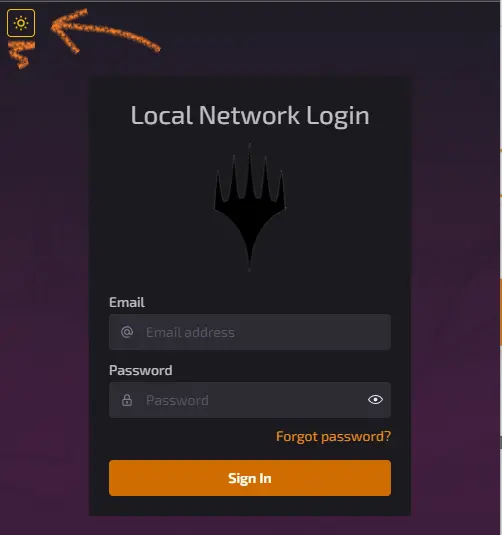
Which makes everything delightfully dark and not so glaringly bright. The Development Train is back on the rails!! Many more exciting new features to come. ☺️
The literal and graphical information presented on this site about Magic: The Gathering, including card images, the mana symbols, and Oracle text, is copyright Wizards of the Coast, LLC, a subsidiary of Hasbro, Inc. TCG Machines is not produced by, endorsed by, supported by, or affiliated with Wizards of the Coast.


